Remote Access Setup Guide
Connect your iPhone to your Mac from anywhere using a secure mesh network.
Why do I need this?
KoeCode's iOS companion connects directly to your Mac. When both devices are on the same network, everything works automatically.
To control your Mac from mobile data or a different network, a mesh VPN creates a secure, private connection between your devices — no open ports, no router configuration. All traffic is encrypted end-to-end.
If you run your own VPN server (WireGuard, OpenVPN, etc.), you can use that instead. Just make sure both devices can reach each other, then enter your Mac's VPN IP address or hostname in KoeCode's remote access settings.
Choose your provider
Create a Tailscale account
Go to tailscale.com and sign up for a free account. The free plan supports up to 100 devices, which is more than enough.
Install Tailscale on your Mac
Download Tailscale from the Mac App Store or via brew install tailscale. Sign in with your account.
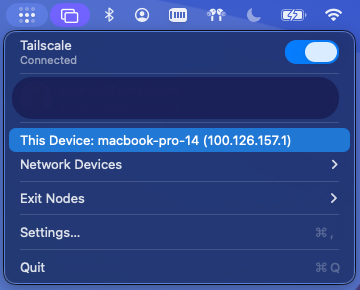
Once signed in, your Mac will appear in your Tailscale network with a device name (e.g., macbook-pro-14) and a unique IP address (e.g., 100.x.x.x). You can use either to connect, but the device name is usually easier to remember.
Install Tailscale on your iPhone
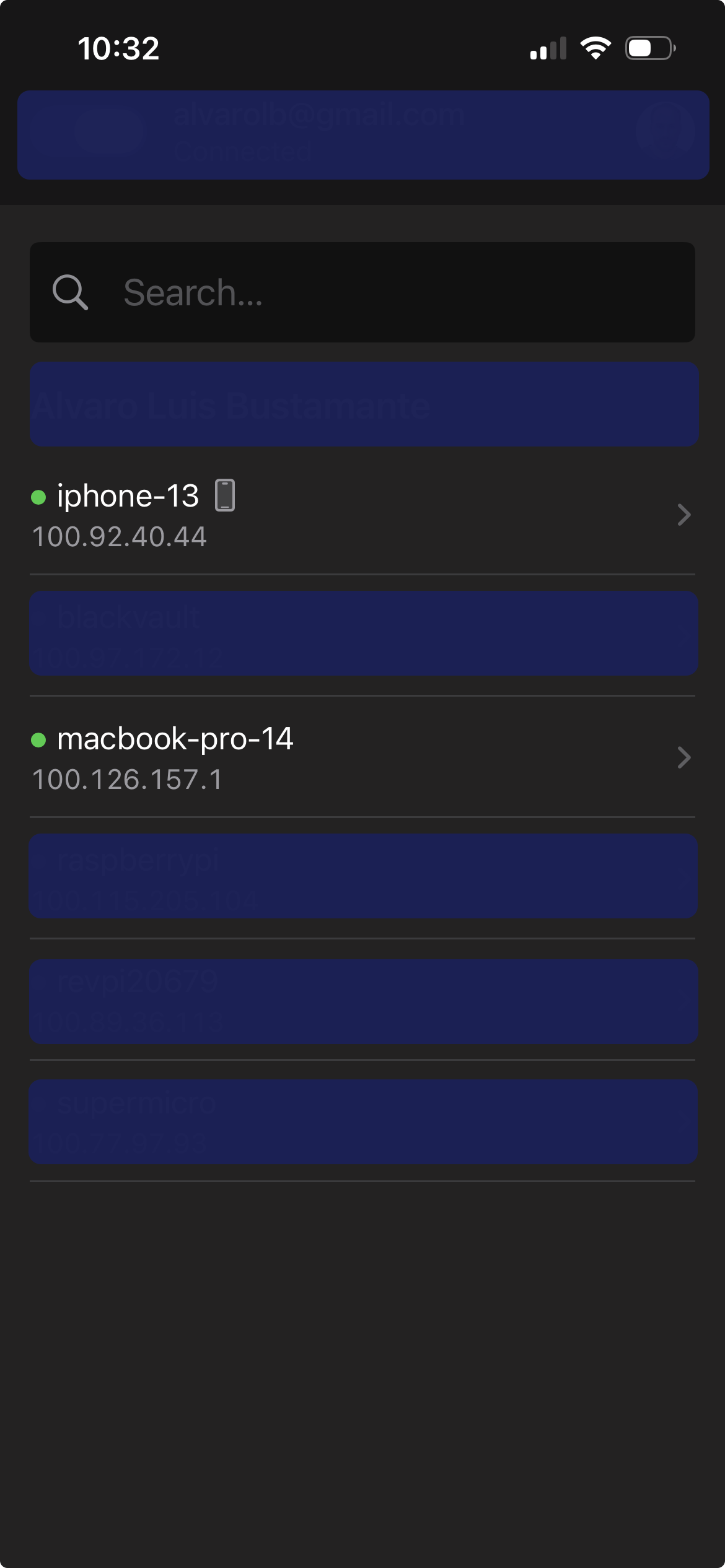
Download Tailscale from the App Store and sign in with the same account.
Both devices should now appear in your Tailscale dashboard.
Configure KoeCode on your iPhone
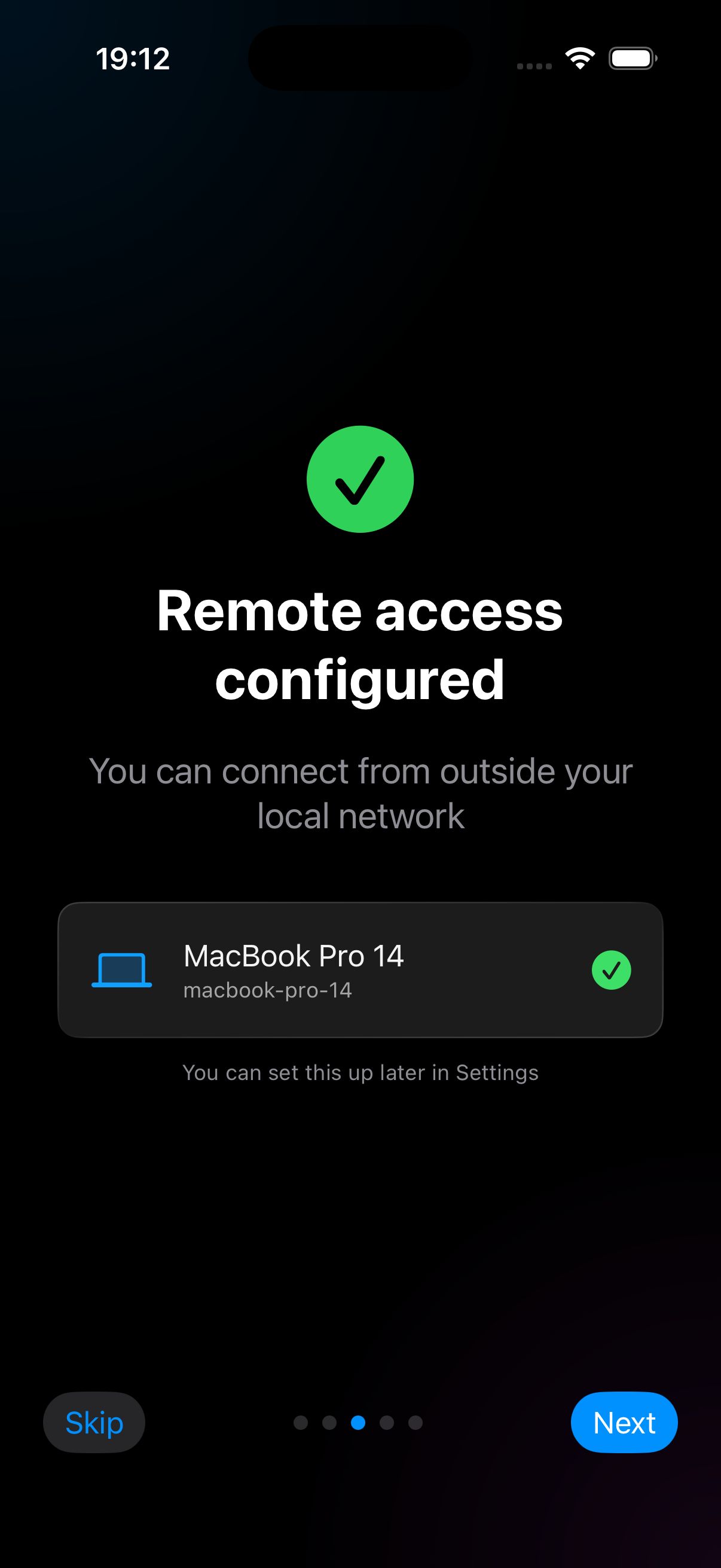
Open KoeCode on your iPhone and enter your Mac's Tailscale device name (e.g., macbook-pro-14) or IP address. You can do this in two places:
- During onboarding — when you first set up the app, you'll be asked for the remote address.
- In Settings > Connection — if you skipped it or need to change it later.
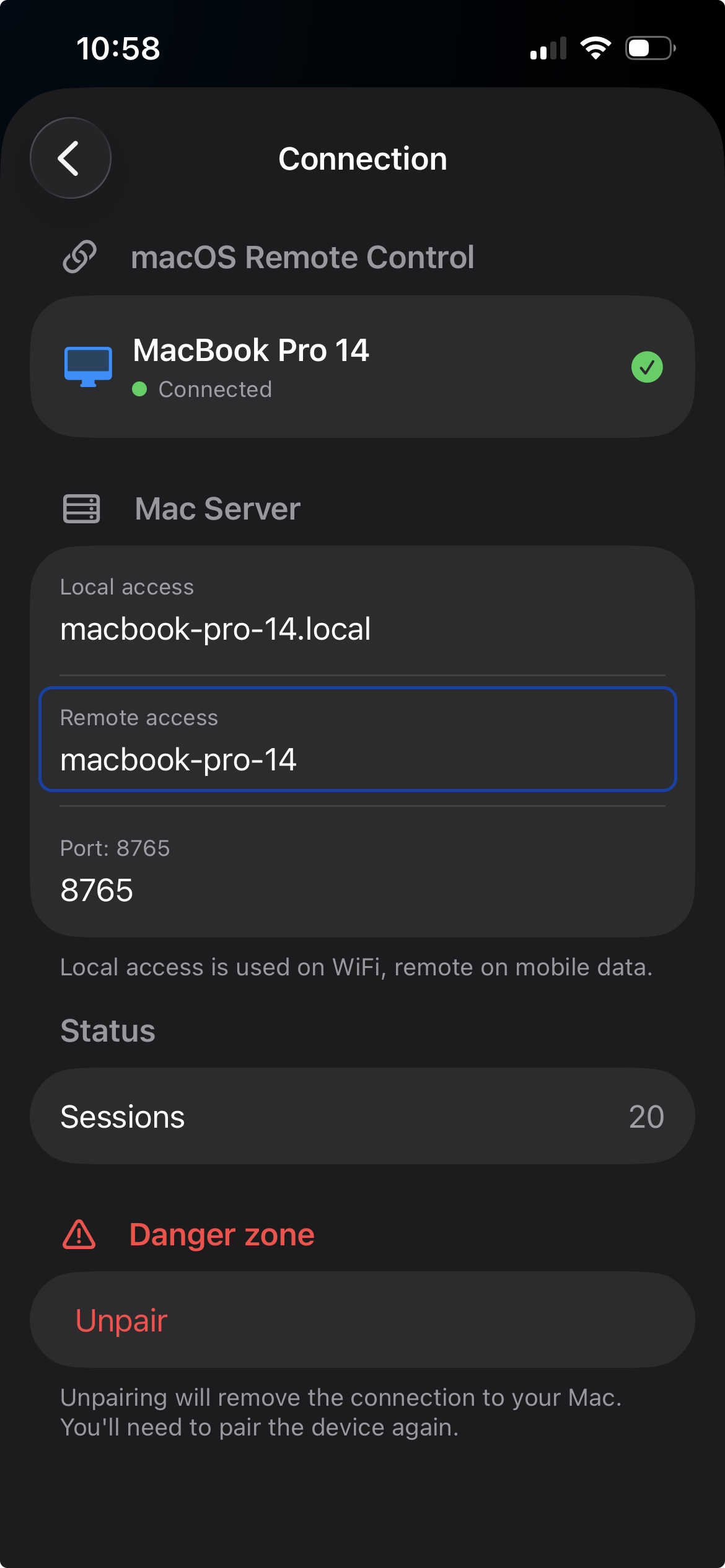
That's it! KoeCode will automatically use the local connection when on the same Wi-Fi, and the Tailscale connection when you're away.
Need help?
If you run into any issues, check our FAQ or contact us at info@koecode.ai.